NFS
About NFS Shares
NFS (Network File System) shares in OpenStack allow you to create shared storage that can be accessed by multiple instances across your project. This guide will walk you through the process of setting up and mounting an NFS share on your workloads.
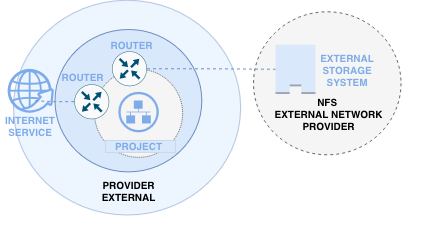
Prerequisites
Before setting up an NFS share, ensure you have the following:
- A network provider with access to your project for NFS connectivity
- An internal Neutron network where your workloads will connect
- Sufficient quota for creating shares and network resources
Request the setup of the network provider access to the support team.
Steps to Setup NFS Share
Step 1: Create a Router with Provider as External Network
Create a router that uses the NFS provider network as the external network:
openstack router create nfs-router \
  --external-gateway <provider-network-id>
Step 2: Create Router Interface on Internal Network
Attach the router to your internal project network where workloads will run:
openstack router add subnet nfs-router <internal-subnet-id>
Step 3: Add Route to Internal Subnet
Insert a new route in your internal network's subnet to reach the NFS provider network through the router interface:
openstack subnet set <internal-subnet-id> \
  --host-route destination=<nfs-provider-subnet>,gateway=<router-interface-ip>
Step 4: Create Share Network
Create a share network associated with the provider external network:
openstack share network create nfs-share-network \
  --neutron-net-id <provider-network-id> \
  --neutron-subnet-id <provider-subnet-id>
Step 5: Create NFS Share
Create a share with the desired size:
openstack share create NFS <share-size-in-gb> \
  --name my-nfs-share \
  --share-network nfs-share-network
Wait for the share to reach available status:
openstack share list
Step 6: Create Access Rule
Create an access rule asssociated to the share with the allowed entry:
The following example will grant access to any ip in the provider network to the share. Configure the router provider ip with /32 in real scenarios.
openstack share access create ip 0.0.0.0/0 nfs-share-network
Step 7: Mount NFS Share from Workload
Once the share is available, mount it from your workload instance:
# Install NFS utilities if not already installed
sudo apt-get install nfs-common

# Create mount point
sudo mkdir -p /mnt/nfs-share

# Mount the NFS share
sudo mount -t nfs <share-export-location> /mnt/nfs-share

# Verify mount
df -h /mnt/nfs-share
To make the mount persistent, add it to /etc/fstab:
echo "<share-export-location> /mnt/nfs-share nfs defaults 0 0" | sudo tee -a /etc/fstab